
YouTube Thumbnail Resizer
Resize any image to 1280×720 or full 4K 3840×2160, auto-compress it under the 2MB limit, and download it ready to upload. Free, in your browser, no signup.

How to use the YouTube Thumbnail Resizer
Upload your image
Drop in a JPG or PNG straight from your editor or a screenshot. Everything runs in your browser, so the image never leaves your device.
Pick a YouTube preset
Choose Thumbnail at 1280×720 or 4K 3840×2160, Shorts at 2160×3840, a 1:1 podcast square, or the 2560×1440 channel banner. Each preset locks the exact ratio YouTube expects, so there is no guessing at dimensions.
Compress under the file limit
Turn on auto-compress and the tool shrinks the file until it lands under 2MB, the limit that applies on every upload path, and shows you the final size in KB.
Download and upload to YouTube
Save the resized image and set it as your thumbnail in YouTube Studio. Custom thumbnails require a phone-verified account, so verify once before your first upload.
YouTube thumbnail size in 2026: the exact specs
The short answer: 1280×720 pixels at 16:9 still works, but it is no longer the ceiling. As of 2026, YouTube’s official help page recommends thumbnails up to 3840×2160 (4K), with a minimum width of 640 pixels. Most guides and tools still quote 1280×720 as the spec because that was the recommendation for years; the numbers on this page are verified against YouTube Help as of August 2026.
The file-size limit is the detail almost everyone gets wrong. The famous 2MB cap applies when you upload from mobile; desktop uploads accept up to 50MB. Podcast thumbnails get 10MB even on mobile. If you have ever wondered why one guide says 2MB and your desktop upload of a 5MB file sailed through, that split is why. Compressing under 2MB remains the safe universal target, and this tool does it automatically, but you are not breaking a rule by uploading a 20MB 4K file from your computer.
Officially accepted formats are JPG, GIF and PNG. Some guides also list BMP and WebP; those may upload, but they are not on YouTube’s official list, so stick to the three that are. Note that a GIF uploads as a thumbnail but displays as a static image. One more gate: custom thumbnails require a verified account (phone verification), and if you hit the “Daily custom thumbnail limit reached” error, it resets after 24 hours.
Why your thumbnail looks blurry after upload (and how 4K fixes it)
Your thumbnail looks blurry because YouTube recompresses every upload and then displays it small: about 168×94 pixels in the suggested-videos sidebar, not much larger in the mobile feed. A 1280×720 export that looks crisp in Photoshop has already been squeezed twice by the time a viewer sees it, once by your export and once by YouTube’s pipeline. That is why creators who follow the classic spec to the pixel still report soft, muddy thumbnails.
The fix is to give the compressor more to work with. A 1920×1080 or full 3840×2160 source retains visibly more detail after YouTube’s recompression than a 1280×720 one, which is exactly why the official recommendation moved to 4K. Resize up to the largest clean source you have rather than down to the minimum that technically passes.
Resolution only solves half the problem. Since the render can be as small as 168×94, text that fills a quarter of the frame at full size becomes unreadable in the sidebar. Check your thumbnail at small size before uploading: if the title text or the focal face does not read at 168×94, bigger pixels will not save it. High contrast between subject and background survives both the shrink and the compression best.
How to fix the “thumbnail file is bigger than 2MB” error
You are seeing this error because your upload is going through a path where the 2MB limit still applies, most commonly the mobile app. High-resolution screenshots and layered exports blow past 2MB easily, so the rejection is about file weight, not dimensions. The same file will usually upload fine from desktop, where the limit is 50MB.
The reliable fix is to compress to under 2MB without shrinking the dimensions first. Upload your image here, keep the preset at your target resolution, and let auto-compress step the quality down until the file is under 2MB; the final size in KB is shown so you know it will pass before you leave the page. Under 2MB clears every upload path, mobile included, so it is the one target that never bounces.
YouTube banner size and the safe area, explained
A YouTube channel banner should be uploaded at 2560×1440 pixels. The minimum YouTube accepts is 2048×1152 at 16:9, and the file must be under 6MB. Those are the easy numbers; the part that ruins banners is that no device shows the whole image.
You will find two different “safe area” figures in circulation, 1235×338 and 1546×423, and both are correct. They describe the same zone measured on two different canvases: 1235×338 on the 2048×1152 minimum upload, which scales to roughly 1546×423 on the recommended 2560×1440 upload. If you design at 2560×1440, as you should, keep every word and logo inside the central 1546×423 band.
The safe area matters because each device crops differently. A TV shows the full 2560×1440 image, a desktop browser shows a wide middle band whose exact height shifts with the window, and a phone shows little more than the safe area itself. Text placed outside that central zone will be cut off for most of your audience, which is why a banner that looks perfect in your editor arrives cropped on mobile. Design for the 1546×423 core first and treat everything outside it as decoration.
Frequently asked questions
What is the correct YouTube thumbnail size in 2026?
1280×720 pixels at 16:9 still works, but YouTube’s official spec now recommends up to 3840×2160 (4K), with a minimum width of 640 pixels. Accepted formats are JPG, GIF and PNG. The file limit is 2MB when uploading from mobile and 50MB from desktop, a split most guides still miss.
Can I upload a 4K (3840×2160) thumbnail to YouTube?
Yes. As of 2026, 3840×2160 is YouTube’s recommended thumbnail resolution, and desktop uploads accept files up to 50MB. A 4K source also survives YouTube’s recompression better than a 1280×720 one, so it usually looks sharper once live.
Why does YouTube say my thumbnail is bigger than 2MB?
The 2MB limit applies when you upload from mobile; desktop allows up to 50MB, and podcast thumbnails get 10MB on mobile. If you hit the error, resize the image here with auto-compress on and it will be stepped down until it lands under 2MB, which is the one target that passes on every upload path.
Why is my thumbnail blurry after I upload it?
Because YouTube recompresses every thumbnail and displays it small, down to about 168×94 pixels in the sidebar, so a 1280×720 export loses visible sharpness in processing. Uploading a larger source, 1920×1080 or the full 3840×2160, leaves more detail after compression. Also check that your text still reads at 168×94; if it does not, resolution alone will not fix it.
What size is a YouTube banner, and what is the safe area?
Upload your banner at 2560×1440 pixels; the minimum is 2048×1152 and the file cap is 6MB. The safe area visible on every device is 1546×423 on that 2560×1440 canvas. The 1235×338 figure you will also see is the same zone measured on the 2048×1152 minimum canvas. TV shows the full image, desktop a middle band, and mobile roughly only the safe area, so keep text and logos inside it.
What is the thumbnail size for YouTube Shorts and podcasts?
Shorts thumbnails are vertical 9:16 at 2160×3840 pixels, the regular spec turned on its side. Podcast thumbnails are square 1:1 and get a 10MB file limit on mobile instead of the 2MB that applies to regular video thumbnails there. Standard video thumbnails stay 16:9.
More free tools

Paste any YouTube link (watch, youtu.be, Shorts or live) and get a correct citation in APA 7, MLA 9, Chicago 18 or Harvard, with the in-text form included.
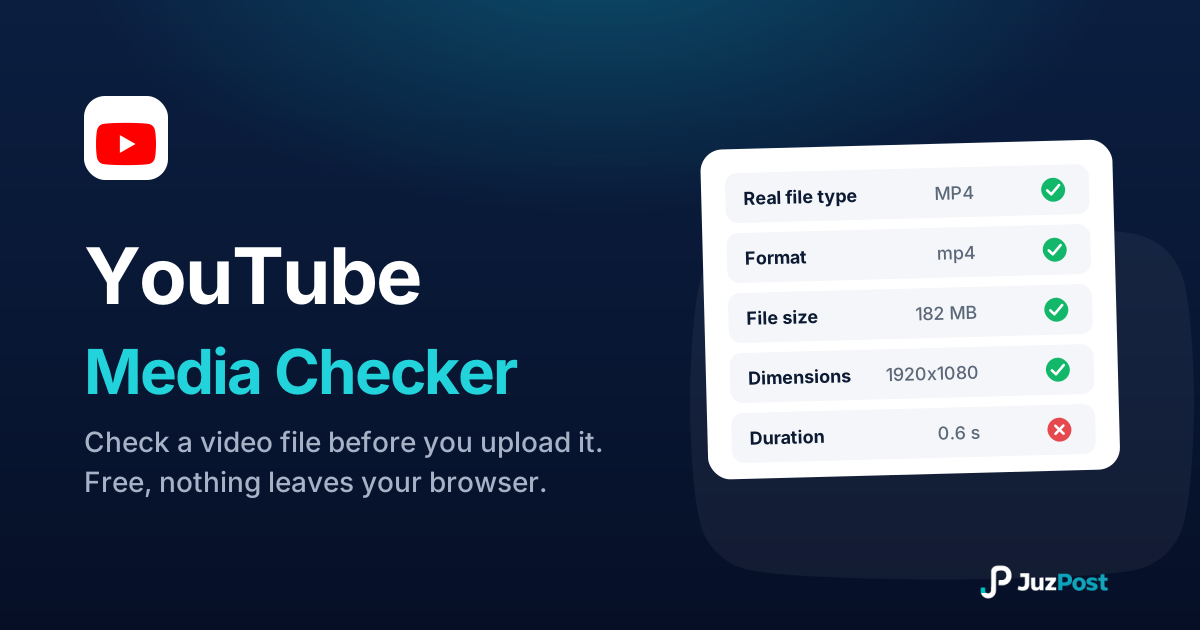
Drop a video in and see whether it will publish to YouTube. Reads the real file type, format, size, dimensions and length in your browser. Nothing is uploaded.
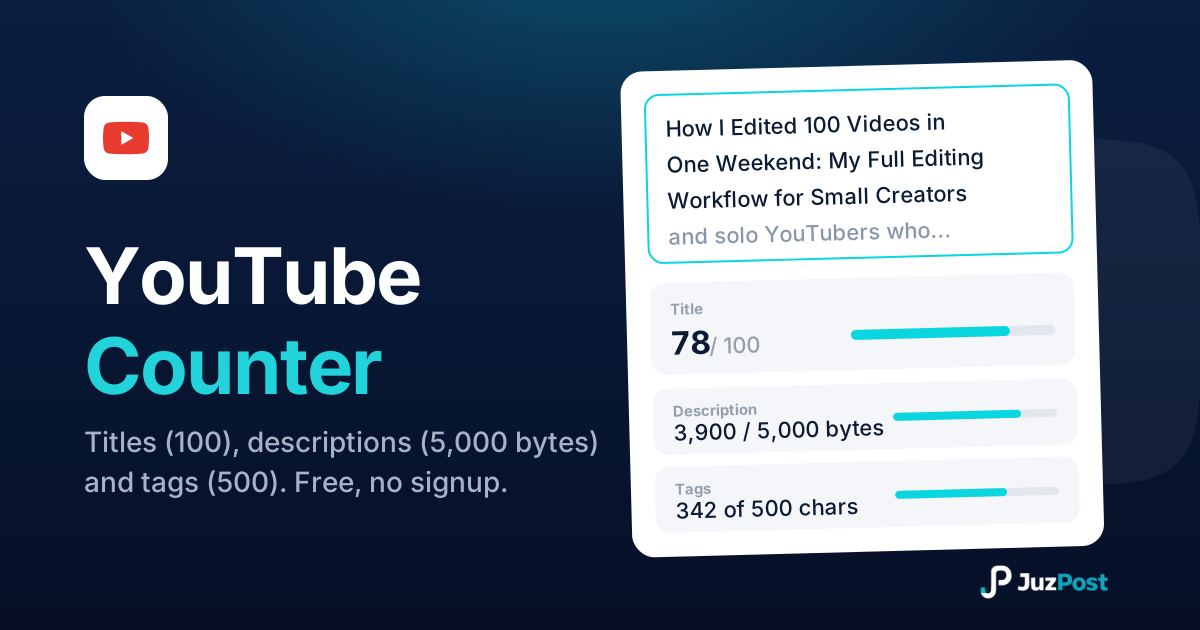
Live counts for YouTube titles (100 characters), descriptions (5,000 bytes) and tags (500), measured the way YouTube actually measures them.