
X (Twitter) Photo Resizer
Resize any photo to exact X sizes (1500×500 header, 400×400 profile, 16:9 posts). Free, in your browser.

How to use the X (Twitter) Photo Resizer
Add your photo
Drop an image onto the tool or pick one from your device. JPEG and PNG work best. X rejects BMP and TIFF uploads outright, so the tool exports to formats X actually accepts.
Pick where it will go on X
Choose a placement preset: header (1500×500), profile photo (400×400), post image (16:9, 1:1 or 4:5), or link card (1200×628). Each preset locks the exact pixel dimensions for that slot.
Check the preview before you commit
The live preview shows your image at the real dimensions. For headers, mind the danger zones: X itself warns that 60 pixels on the top and bottom can be cropped depending on the viewer’s screen.
Download and post
Save the resized file and upload it to X. Because the image already matches the slot exactly, X has less rescaling to do, and that is the single biggest lever against upload blur.
X (Twitter) image sizes for 2026
As of August 2026, these are the numbers that matter, checked against the X Help Center and X Ads specs. Profile photo: 400×400 pixels, maximum 2MB, in JPEG, PNG or GIF. Header: 1500×500 pixels, a 3:1 ratio. Post photos: up to 5MB each, up to four per post. Animated GIFs get more room (5MB on mobile and 15MB on web), but a GIF must travel alone; X will not combine one with other images in the same post.
For in-feed post images, 1600×900 or 1200×675 both give you a sharp 16:9 landscape. Square posts work at 1080×1080, and 1080×1350 covers the 4:5 vertical that takes up the most timeline height without risking a crop. Link previews using the large summary card render at 1200×628 (1.91:1), with the same 5MB ceiling as regular photos.
Running ads changes the menu slightly: image ads accept PNG or JPEG up to 5MB, carousel ads take 2–6 slides at 800×418 (1.91:1) or 800×800 (1:1), and every slide in a carousel must share one ratio. GIFs placed in ads render as static frames, so there is no point paying the file-size cost.
Two formats never work anywhere on X: BMP and TIFF are explicitly rejected at upload. And photos do not count toward the 280-character limit, so a four-image post costs you no text.
The 1500×500 header, and the safe zone that actually matters
Most size guides stop at “1500×500” and tell you to leave some empty space. The real constraint has numbers: X’s own help pages warn that 60 pixels on the top and 60 pixels on the bottom of the header can be cropped away, depending on the viewer’s monitor and browser. That leaves a center band of roughly 1500×380 where text and faces are reliably safe.
The second hazard is the profile photo, which overlaps the lower-left corner of the header on every profile view. Logos, names or dates placed there disappear behind the avatar. Keep critical content centered vertically and clear of the lower-left, and the header survives every layout X renders.
On file size, sources disagree. X only documents a 2MB cap for profile photos and says nothing official about headers, while third-party guides quote anywhere from 2MB to 5MB. Keeping headers under 2MB is the safe play: it clears every claimed limit and gives X’s compressor less reason to degrade the image.
Why X makes your images blurry, and how to stop it
The blur is not your export settings failing; it is X re-processing your file. The Help Center states it plainly: “your photo will be automatically scaled for display.” Every upload gets recompressed, and the further your image is from the target dimensions, the more aggressive that rescale is. An image that looks perfect in the upload preview can still lose quality the moment you press save, because the preview shows your file and the timeline shows X’s recompressed copy.
The fix is to give the compressor nothing to do. Export at exactly the dimensions of the slot (1500×500 for a header, 400×400 for a profile photo, 1600×900 for a landscape post) rather than uploading a 4K file and letting X shrink it. Never upscale a small image to hit a recommended size; you are enlarging noise that compression then smears.
Format choice matters too. PNG holds up better for text, line art, screenshots and flat-color graphics, where JPEG artifacts show first. JPEG is the right call for photographs, where its compression is least visible. Either way, stay comfortably under the 5MB photo cap and export in sRGB, since wide-gamut color profiles can shift or dull after X’s processing.
How X crops photos in the timeline
A single photo currently displays uncropped in the timeline anywhere from 2:1 landscape through 3:4 portrait. Inside that range, what you upload is what people see; outside it, X crops to fit. 16:9 and 1:1 have been safe through every layout change, so they are the ratios to default to. 3:4 displays in full as of mid-2026, but preview before posting: X has reversed itself on portrait display before.
That reversal is why older advice conflicts. In 2021 X switched to showing single images full-frame in the timeline, then later walked part of it back, and users have complained ever since about having to open pictures to see the whole thing. Any guide written between those changes is describing a timeline that no longer exists.
Multi-image posts follow different rules that almost no size guide covers. Two images are each cropped to 7:8, side by side, which is why the first image of a pair “crops weirdly” and the second loses its edges. Four images render as a 2×2 grid of thumbnails. If a post depends on every pixel being visible, one image in a safe ratio beats four.
One last habit worth building: add alt text to every image before posting. It makes the post usable for screen-reader users and gives X actual text to index for a photo it otherwise cannot read.
Frequently asked questions
What size is an X (Twitter) header in 2026?
1500×500 pixels, a 3:1 ratio. X warns that 60 pixels on the top and bottom can be cropped depending on the viewer’s screen, so keep text and faces in the vertical center, and keep the lower-left clear of anything important, since the profile photo overlaps it. Keep the file under 2MB to clear every documented limit.
What is the best image size for an X post?
1600×900 or 1200×675 for a 16:9 landscape post, 1080×1080 for square, and 1080×1350 for a 4:5 vertical. All three sit inside the range X currently displays without cropping, and 16:9 and 1:1 have stayed safe through every timeline change. Post photos can be up to 5MB each.
Why does my Twitter header look blurry after I upload it?
Because X recompresses every upload; its help pages state your photo “will be automatically scaled for display.” The more X has to resize your file, the worse it looks, so export at exactly 1500×500 instead of uploading a larger image, use PNG for text or line art and JPEG for photos, and never upscale a small source image.
What image sizes does X show without cropping?
A single photo displays in full from 2:1 landscape through 3:4 portrait as of 2026. 16:9 and 1:1 are the always-safe choices. Multi-image posts crop differently: two images are each cut to 7:8, and four images show as a 2×2 grid of thumbnails.
What is the maximum image file size on X?
Photos can be up to 5MB each, and profile photos are capped at 2MB. Animated GIFs get 5MB on mobile and 15MB on web; the 15MB figure applies to GIFs only, not photos. Accepted formats are JPEG, PNG and GIF; BMP and TIFF are rejected outright.
Does X compress my images?
Yes. X’s help documentation confirms every photo is automatically scaled for display, which is why an image can look sharp in the upload preview and soft in the timeline. Uploading at the exact target dimensions gives the compressor the least work to do, which is the most reliable way to keep an image sharp.
Is my photo uploaded to your servers?
No. Resizing happens entirely in your browser. The image never leaves your device and nothing is stored on a server. There is no account, no signup and no watermark, and the resized file downloads straight from your own machine.
More free tools
Bold, italic, cursive and fancy Unicode text that pastes into X posts (280 characters), bios (160) and display names (50).
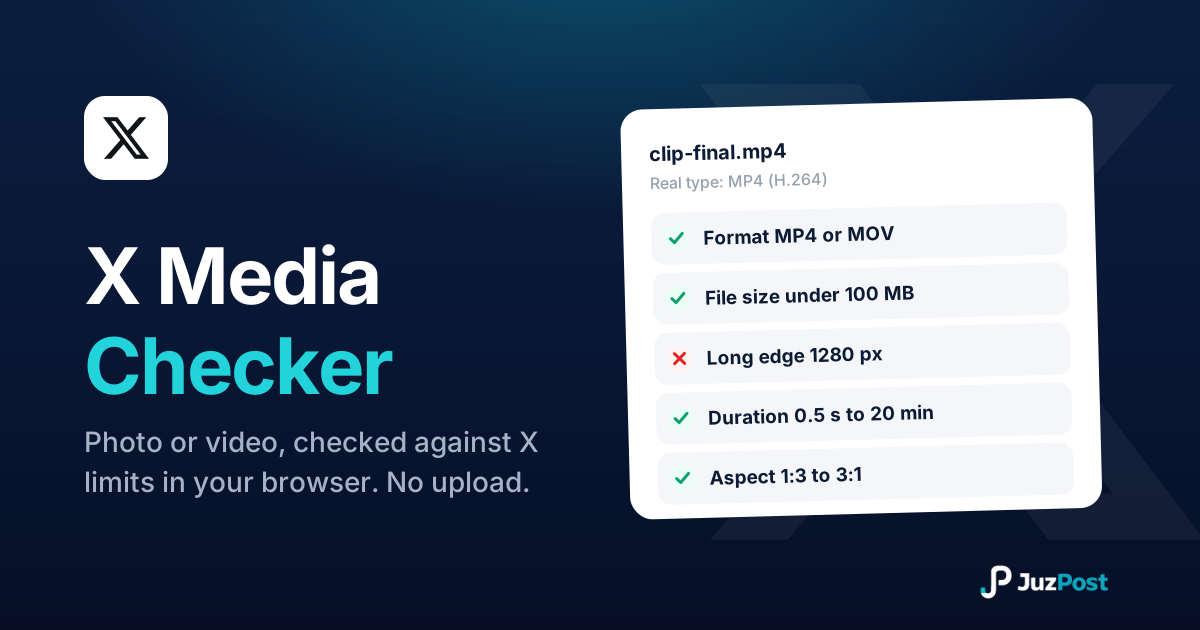
Drop in a photo or video and see whether it will post to X before you waste an upload. Real file type, format, size, dimensions and duration, checked in your browser. Nothing is uploaded.
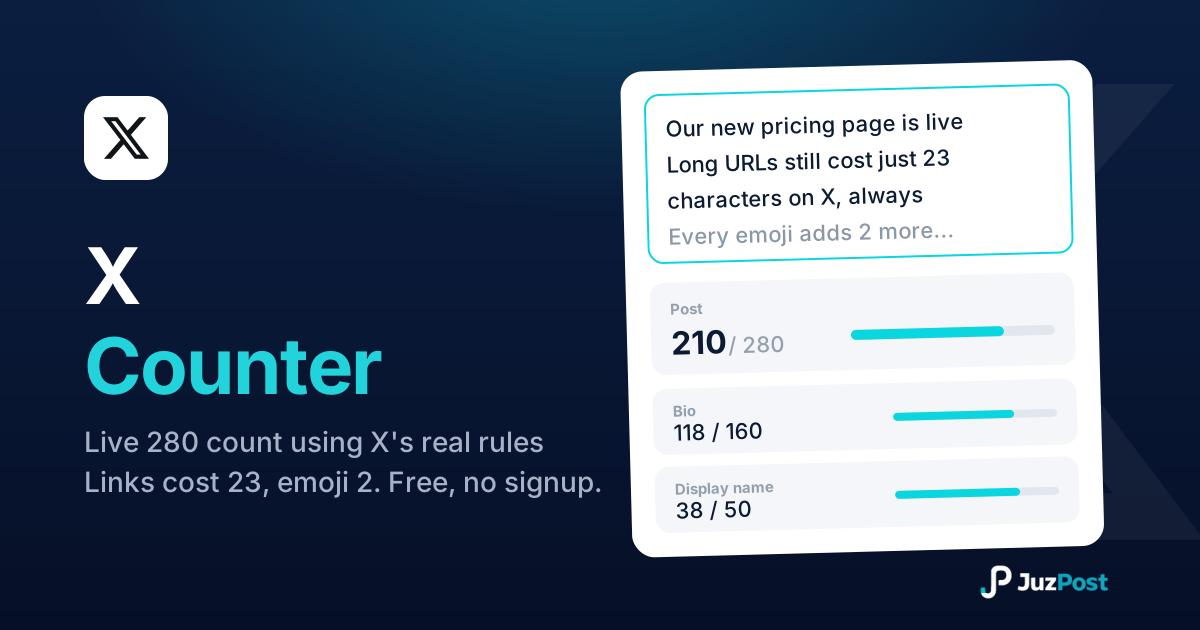
Live 280-limit check using X’s real weighted rules: every link costs 23 characters, every emoji costs 2. Bio and display name fields included.