
Pinterest Pin Resizer
Resize any image to 1000×1500 (2:3), 1080×1920 full-bleed, square, long pin, board cover or profile. Free, in your browser, no signup.

How to use the Pinterest Pin Resizer
Drop in your image
Click to choose a PNG, JPG or WebP, or drag it onto the page. The file is decoded right in your browser and never uploaded to a server.
Pick a Pinterest size
Six presets cover every placement: standard pin 1000×1500, full-bleed 1080×1920, square 1000×1000, long pin 1000×2100, board cover 600×600 and profile photo 180×180.
Check the crop in the preview
The image is scaled to fill the exact frame and cropped from the center, with no stretching and no bars. Switch presets to see instantly what each ratio keeps and trims.
Download as PNG or JPG
Export at the preset’s exact pixel dimensions with one click. No watermark, no image cap, no account. Resize as many pins as you need.
Pinterest pin sizes for 2026
Pinterest’s recommended pin size is 1000 × 1500 pixels at a 2:3 aspect ratio. That is the current number on Pinterest’s own creative best-practices page, checked August 2026, along with the reason behind it: most people browse Pinterest on a phone, so a vertical 2:3 image fills the feed without risking a crop. Pinterest’s wording is blunt: larger aspect ratios “may get cut off in people’s feeds.”
Beyond the standard pin, each placement has its own dimensions: 1080 × 1920 (9:16) for full-bleed, video-style pins; 1000 × 1000 for square images; 1000 × 2100 (1:2.1) as the practical ceiling for long infographic-style pins; 600 × 600 for board covers; and 180 × 180 for the profile photo, which displays as a circle. All six are one-click presets in the resizer above.
A note on conflicting numbers: as of August 2026, Pinterest’s organic pin-specs help page no longer publishes an image aspect ratio at all, while its business best-practices page still states 2:3 at 1000 × 1500. So 2:3 remains the official recommendation. You will also still find old specs circulating on the web, like 735 × 1102 pins or a 600 px minimum width. Those are legacy numbers from years ago; ignore them.
Why Pinterest crops your pins (and how to stop it)
The most common complaint from pinners is an image that uploads fine but gets chopped in the feed. The cause is almost always the aspect ratio: once a pin is taller than roughly 2.1 times its width, the feed truncates it, cutting off the bottom (and any text overlay sitting there). Pinterest no longer publishes an official cutoff, but the 1:2.1 line (1000 × 2100) is the consistent consensus, which is why this tool caps its long-pin preset there and warns you about it.
Odd ratios cause the other failure modes. Very wide or thin images get forced into a different frame, sometimes with Pinterest’s blurred background fill behind them, and square photos straight off a phone sit awkwardly in a feed built for vertical images. The fix is the same in every case: commit to a supported ratio before you upload, rather than letting Pinterest decide the crop for you.
This resizer uses a center-cover crop: it scales your image to completely fill the chosen frame and trims the overflow evenly from the edges. You see the exact final crop in the preview before you download, so nothing about how the pin displays is left to chance. If the center crop cuts something important, recompose the source image and re-drop it; the preview updates instantly.
The safe zone: keep text where Pinterest can’t cover it
Pinterest publishes an official safe zone for text and key elements on full-bleed pins, and it applies to both image and video pins: keep everything important out of the top 270 px, the left 65 px, the right 195 px and the bottom 790 px, measured on a 1080 × 1920 canvas. Those margins are where Pinterest’s own interface (title, save button, overflow controls) draws over your pin, which is why text placed near the bottom of a tall pin so often gets covered on mobile.
If you design edge-to-edge white or black pins, one more official quirk matters: Pinterest automatically adds a 4%-opacity black layer over white-background pins in light mode, and a 10%-opacity white layer over black-background pins in dark mode, to keep pins visible against the app background. Pure-white and pure-black designs will render very slightly tinted, so plan for it rather than fighting it.
For standard 2:3 pins the practical rule is simpler: keep text and logos comfortably inside the middle of the frame, because the 2:3 ratio itself is what protects you from feed truncation. The safe-zone margins matter most on 1080 × 1920 full-bleed pins, where your image occupies the whole screen.
Pinterest image specs, and how this resizer fits them
Pinterest accepts BMP, JPEG, PNG, TIFF and WebP image uploads, with a 20 MB maximum file size on web upload (the mobile apps accept larger files). Around the image, the limits as of August 2026 are: pin titles up to 100 characters, descriptions up to 800 characters (only roughly the first line shows in the feed), and on-image text boxes up to 250 characters.
This tool exports PNG or JPG at the preset’s exact pixel dimensions. Pick 1000 × 1500 for a standard pin and it comes out as precisely 1000 × 1500, ready to upload. JPG exports are flattened onto white, since JPEG cannot store transparency; choose PNG if your source has transparent regions you want preserved.
Everything happens in your browser. Your image is decoded, cropped and exported locally, never sent to a server, and there is no signup, no watermark and no limit on how many images you resize. All specs on this page were verified in August 2026 against Pinterest’s help center and business creative-best-practices pages.
Frequently asked questions
What size should a Pinterest pin be in 2026?
1000 × 1500 pixels at a 2:3 aspect ratio. That is Pinterest’s official recommendation, verified against its creative best-practices page in August 2026. Pinterest is mobile-first, so vertical 2:3 pins fill the feed cleanly, and Pinterest itself warns that larger aspect ratios may get cut off in people’s feeds.
Is Pinterest 9:16 or 2:3?
Both, for different pins. 2:3 (1000 × 1500) is the recommended ratio for standard image pins, while 9:16 (1080 × 1920) is the full-bleed, video-style format. If you go 9:16, keep text inside Pinterest’s safe zone: the app’s interface covers about 270 px at the top and 790 px at the bottom of a 1080 × 1920 canvas.
Why does Pinterest keep cutting off my pins?
Because the image is taller than the feed allows: pins taller than roughly 2.1 times their width get truncated, so a very long pin shows cropped with its bottom (often the text) cut away. Resize to 1000 × 1500 (2:3) for a standard pin, or cap long pins at 1000 × 2100, and the feed will show the whole image.
What is the Pinterest pin size in inches?
Pins are measured in pixels, not inches, because they only exist on screens. If you are designing in print software at 300 DPI, 1000 × 1500 px works out to roughly 3.33 × 5 inches. Still, export in pixels and let this tool set the exact 1000 × 1500 dimensions for you.
What image format is best for Pinterest?
PNG or JPEG. Pinterest also accepts BMP, TIFF and WebP uploads, with a 20 MB file size limit on web upload. Use PNG for graphics with text or transparency and JPEG for photos; this resizer exports both.
Do I need an account to use this pin resizer?
No. It is free and unlimited: no signup, no watermark, no image cap. Resizing happens entirely in your browser, so your images are never uploaded to a server.
More free tools
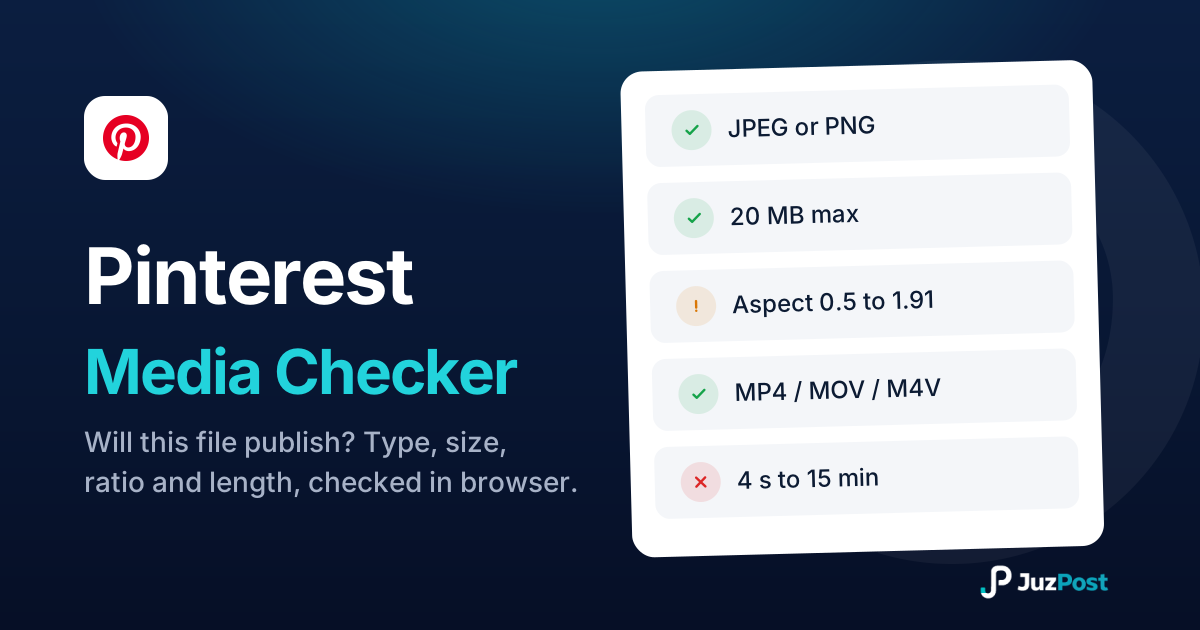
Drop a photo or video and see whether it will publish to Pinterest. Real file type, size, ratio and video length, checked in your browser. Nothing is uploaded.
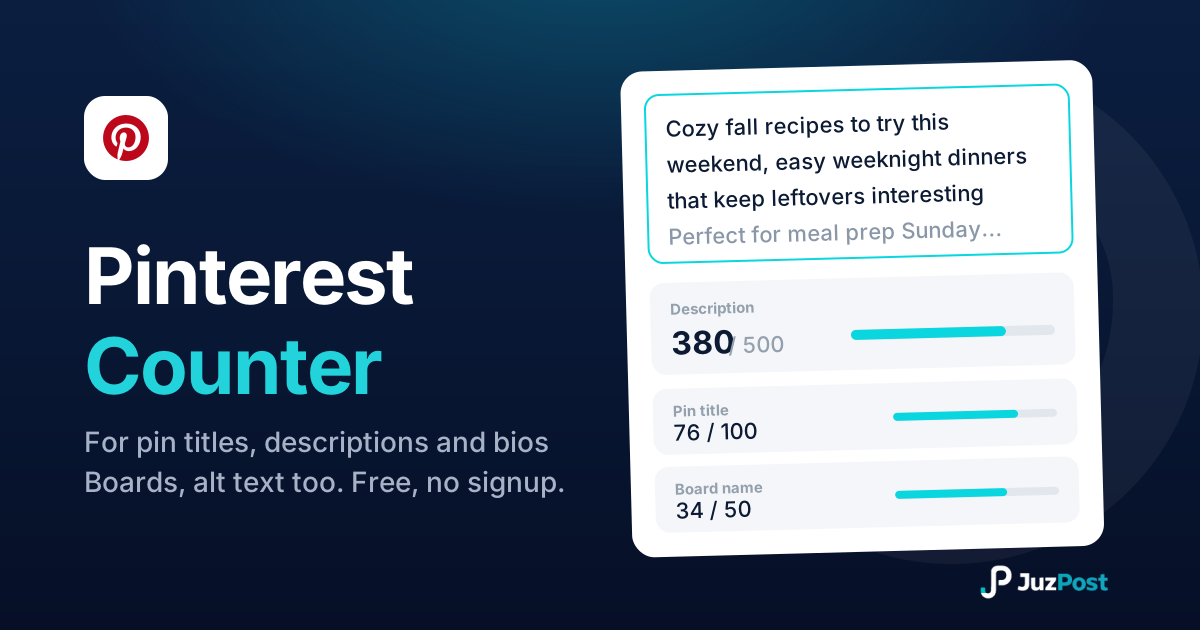
Live counts for pin titles (100), descriptions (500), bios (500) and boards, checked against Pinterest’s 2026 limits, including what’s visible before truncation.
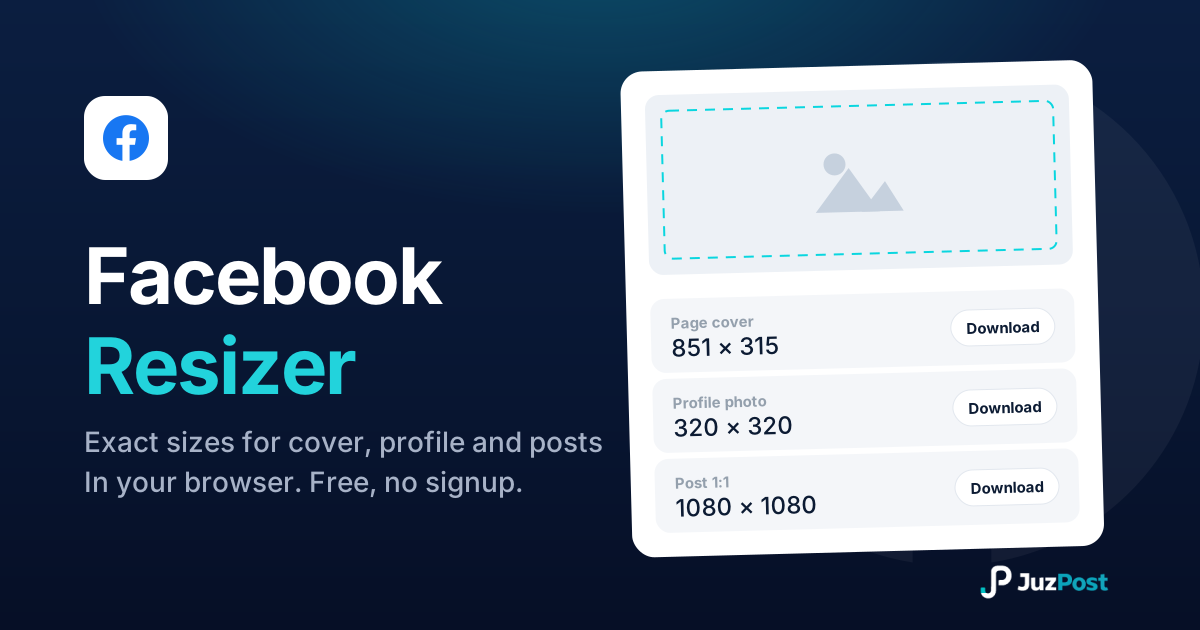
Resize any photo to exact 2026 Facebook dimensions (cover 851×315, group cover 1640×856, posts, Stories) right in your browser. Free, no signup.