LinkedIn Photo Resizer
Resize any photo to LinkedIn’s exact specs (profile 400×400, banner 1584×396, company cover 4200×700) with a live preview, right in your browser.

How to use the LinkedIn Photo Resizer
Pick a LinkedIn preset
Choose where the photo is going: profile picture (400×400), personal banner (1584×396), post image (1200×627), company logo (400×400) or company cover (4200×700). The frame snaps to that placement’s exact ratio.
Drop in your photo
Drag a JPG or PNG onto the page or click to browse. Everything is processed in your browser. The photo never leaves your device, which matters when the photo is your face.
Frame it, or pad it to fit
Drag to reframe what the crop keeps. If cropping would cut off part of the image, switch to pad-to-fit and the whole photo is fitted inside the frame instead. Profile presets preview the circular mask LinkedIn applies.
Download at exact size or 2×
Export at the preset dimensions, or at double size (3168×792 for the banner), which is the upload trick that survives LinkedIn’s compression without blur.
Every LinkedIn image size in 2026
Personal profiles first, because the specs differ from company Pages. Your profile picture must be between 400×400 pixels (the minimum) and 7680×4320 (the maximum), in PNG or JPG at up to 8MB. GIFs are not supported. LinkedIn displays it as a circle everywhere, so anything near the square’s corners gets clipped by the mask. The cover image, the banner across the top of your profile, should be 1584×396 pixels, a 4:1 ratio, as a JPG or PNG under 8MB.
Company Pages run on stricter rules: every Pages image is capped at 3MB, not 8MB, in PNG or JPEG. The logo needs at least 268×268 pixels, with 400×400 recommended. The Page cover image uploads at 4200×700, a 6:1 ratio. Post images for Pages are 1200×627 and must be wider than 200 pixels, or LinkedIn demotes them to a small thumbnail beside the text. Career Pages add their own set: a 1128×376 Life-tab main image, 502×282 custom modules and 900×600 company photos.
One number the guides get wrong deserves a flag: many size charts list the company banner as 1128×191. That is roughly the size at which it displays, but LinkedIn’s own uploader asks for 4200×700. Upload the big one and let LinkedIn scale it down; upload 1128×191 and it gets stretched. Every figure on this page was checked against LinkedIn’s official Help articles in August 2026, including the profile photo page, the cover image page updated in March 2026 and the Pages specifications updated in December 2025.
Why your LinkedIn banner looks blurry, and the fix that works
Knowing the size is not enough, because LinkedIn compresses every upload. That is why a banner that looks crisp in your design tool turns soft the moment it goes live, even at exactly 1584×396. The fix that users consistently report working is uploading at double the recommended dimensions (3168×792 for the personal banner) so the image still holds detail after LinkedIn scales and compresses it. The 2× export option here exists for exactly that reason.
LinkedIn’s own advice backs this up: pick larger file sizes, and expect photographs to render better than logos or flat graphics, which show compression artifacts along their hard edges. For company Pages, LinkedIn specifically recommends uploading a high-resolution JPEG rather than a PNG, which contradicts the folk wisdom that PNG fixes blur. On Pages, the 3MB cap is the constraint, and a high-quality JPEG spends that budget better than a PNG.
If the banner is still soft after a 2× upload, check the source. Scaling a small image up to 3168×792 adds pixels, not detail. Start from a photo that is at least as large as your export size, keep the export quality high, and let LinkedIn do the only downscaling.
The banner safe zone: no official number, so preview it instead
Your circular profile photo overlaps the lower-left area of the banner on desktop, and mobile crops the banner differently again, so part of that 1584×396 canvas is never fully visible. LinkedIn publishes no official safe zone, and the third-party numbers disagree with each other, ranging from 1350×220 to 1400×300 depending on which guide you read. A pixel figure that precise, for a layout LinkedIn can change any quarter, is false confidence.
The honest answer is to look rather than measure. The preview here shows your resized banner in place, with the avatar overlapping it the way a profile actually renders, so you can see whether your text or logo sits behind the circle before you upload. As a rule of thumb that survives layout changes: keep anything that must be readable away from the lower-left corner and out of the outer edges.
The same show-don’t-guess logic applies to the profile picture. Because LinkedIn masks it to a circle, a face framed tightly against the square’s edge loses an ear or a shoulder to the crop. The circle preview applies the mask live, so center your subject and check it before uploading rather than after.
Fit the whole photo, fix upload errors, keep it private
LinkedIn’s uploader forces its aspect ratio on you: a 1:1 crop for the profile picture, 4:1 for the banner. If your photo is a different shape, the uploader only lets you zoom into part of it. Pad-to-fit is the way out: instead of cropping, the tool sits your whole photo inside the frame and fills the remaining space, so a landscape group shot or a tall portrait arrives intact instead of amputated.
Two upload failures worth knowing about. If LinkedIn throws a save error on a background photo, users report that adding roughly 200 pixels of padding above and below the image and re-uploading resolves it; an export from this tool can build that padding in. And if a post image renders as a tiny thumbnail instead of a full-width image, check its width: Pages post images narrower than 200 pixels get demoted to thumbnail layout.
Everything here runs on your device. The resizing, padding and previewing happen in your browser, and your photo is never uploaded to a server. For a headshot, that is not a nicety; it is the difference between resizing a personal photo and handing it to a stranger’s server first.
Frequently asked questions
What size is a LinkedIn banner in 2026?
The personal profile banner is 1584×396 pixels, a 4:1 ratio, as a JPG or PNG under 8MB. That is LinkedIn’s current official recommendation from its Help pages, verified in August 2026. Remember that your circular profile photo overlaps the lower-left of the banner, so keep anything important out of that corner.
What size should my LinkedIn profile picture be?
At least 400×400 pixels, and up to a maximum of 7680×4320, in PNG or JPG at up to 8MB. GIFs are not accepted. LinkedIn displays the photo as a circle everywhere, so center your face; anything near the square’s corners gets clipped by the circular mask.
Does 1920×1080 work as a LinkedIn banner?
Not as-is. 1920×1080 is a 16:9 ratio and the banner frame is 4:1, so LinkedIn would force you to crop away most of the height and keep only a thin slice of the image. Resize or crop it to 1584×396 first, or export at 2× (3168×792) for a sharper result, and you control what the slice shows instead of the uploader deciding.
Why does my LinkedIn banner look blurry after uploading?
LinkedIn compresses every uploaded image, so even a pixel-perfect 1584×396 banner can turn soft. The fix users consistently report is uploading at double size, 3168×792, so detail survives the compression. LinkedIn’s own advice agrees: use larger file sizes, and expect photos to render better than flat graphics or logos, whose hard edges show artifacts first.
How do I resize a photo for LinkedIn without cropping it?
Use pad-to-fit instead of cropping. The tool places your whole photo inside the 4:1 banner or 1:1 profile frame and fills the leftover space, so nothing gets cut off. That solves the common complaint that LinkedIn’s uploader only lets you zoom into part of an image that is the wrong shape.
What is the LinkedIn company page banner size?
Upload it at 4200×700 pixels, a 6:1 ratio, as a PNG or JPEG under 3MB. That is what LinkedIn’s own Pages specification asks for. Many size guides still list 1128×191, but that is roughly the size at which the banner displays, not the upload size. Upload the large version and LinkedIn scales it down cleanly; upload 1128×191 and it gets stretched.
What file types does LinkedIn accept for photos?
PNG and JPG only; GIFs are not supported for profile or Pages images. The file size cap is 8MB for personal profile photos and banners, but only 3MB for anything on a company Page. For Pages images, LinkedIn specifically recommends a high-resolution JPEG over a PNG.
More free tools
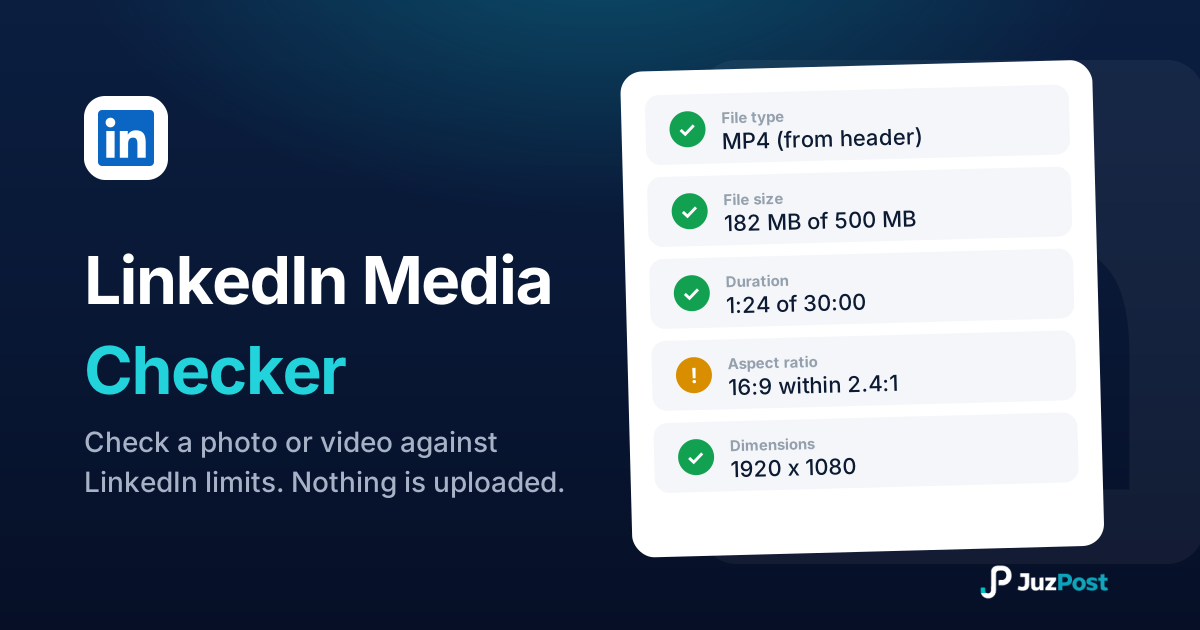
Drop in a photo or video and see whether it will publish to LinkedIn. Real file type, format, size, dimensions, ratio and duration, checked in your browser.
Bold, italic and underline text that pastes straight into LinkedIn posts.
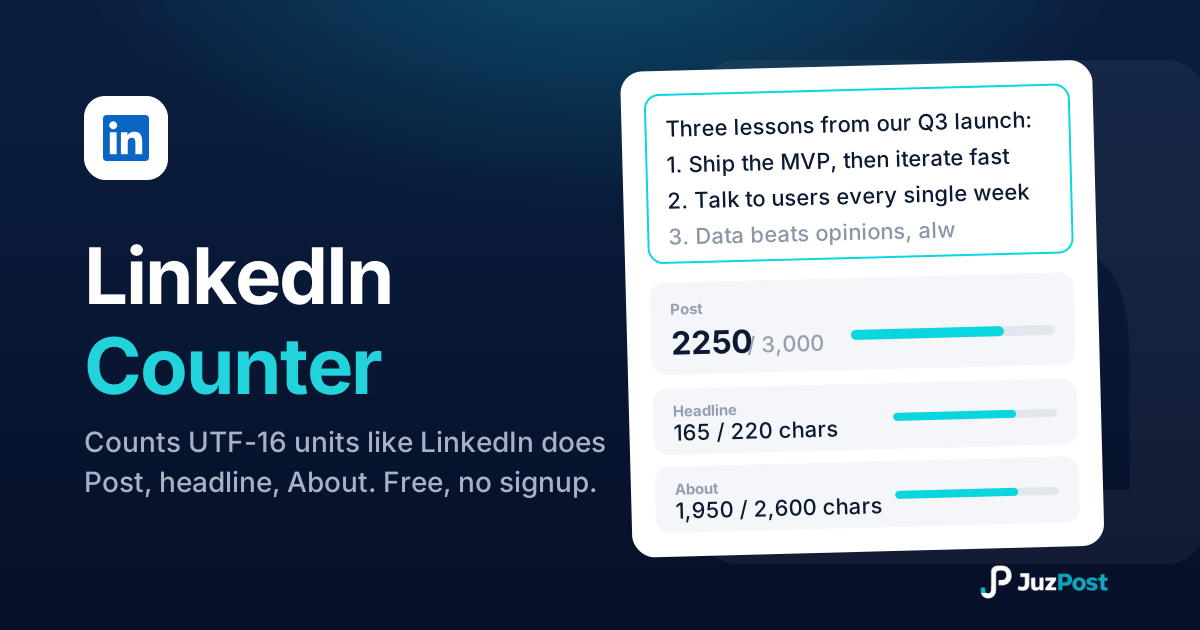
Live counts for the 3,000-character post, 220-character headline and 2,600-character About section, measured in the same UTF-16 units LinkedIn enforces.